Run LinkedIn Outreach With an AI Agent — and Keep Every Conversation on Record
Draft, approve, send and log LinkedIn conversations with your agent, using Busabase as the record: messages, replies, actions and the experience each approval leaves behind.

A colleague was recently surprised to learn that Busabase can be used for LinkedIn outreach. Not because the messages are hard to write — an agent drafts those in seconds. What surprised him was that the conversations could live somewhere other than one person's LinkedIn inbox.
That is the usual state of LinkedIn outreach. Threads sit in a personal account. A reply arrives during a meeting. A follow-up depends on someone remembering it. When a second person — or a second agent — picks up the account next month, they start by scrolling, and mostly by guessing. The work gets done, but no conversation record survives it.
This guide builds the alternative: your agent handles LinkedIn conversations in chat, you approve what it sends, and every message, reply, action and lesson lands in Busabase as a record the next run can read. You will build five tables and one loop — Chat, Review, Act, Log, Learn — with prompts you can adapt to your own agent.
LinkedIn is the channel. Busabase is the record
- LinkedIn is where the conversation happens — the channel, not the system.
- A connector or a manual step (covered honestly below) is how conversations reach your agent.
- Busabase is the record: who you contacted, what was said, what you approved, what happens next, what your team learned. Agents connect over MCP, API or CLI, so switching agents loses nothing.
The agent is the worker. You stay accountable — above all for price, commitments and dates.
What you need before the first message
Do not build from zero. Two existing templates provide most of the ground floor — see /templates:
- Busa CRM provides Companies, Deals, contacts and interactions. Reuse its Companies and Deals; do not build parallel copies.
- Busa Sales Outreach provides positioning, your ideal customer profile, target accounts and a first-touch structure.
Add one folder — LinkedIn Sales Desk — with the five tables below, plus a Doc, "ICP and voice" (who you sell to, what you can and cannot say, price and commitment red lines, escalation rules) and a Skill, "LinkedIn outreach operations" (triage rules, follow-up cadence, deduplication key, pre-send checklist, writeback rules). The weekly review at the end of this guide is how that Skill improves.
This desk applies the loop from How to Build a Self-Improving Agent with Busabase to sales. A companion article on which CRM field changes an agent may propose, and which need a human decision, exists in Chinese on this blog; here we stay with the conversation workflow.
If you would rather not assemble it piece by piece, this desk also ships as a ready-made template: Busa LinkedIn Desk — the five tables, the operations Skill and the approval desk in one installable package.
The five tables
Contacts is the hub. Messages are the entry point. Replies are where approval happens. Actions hold everything that is not a reply. Experience is where the self-improving part lives.
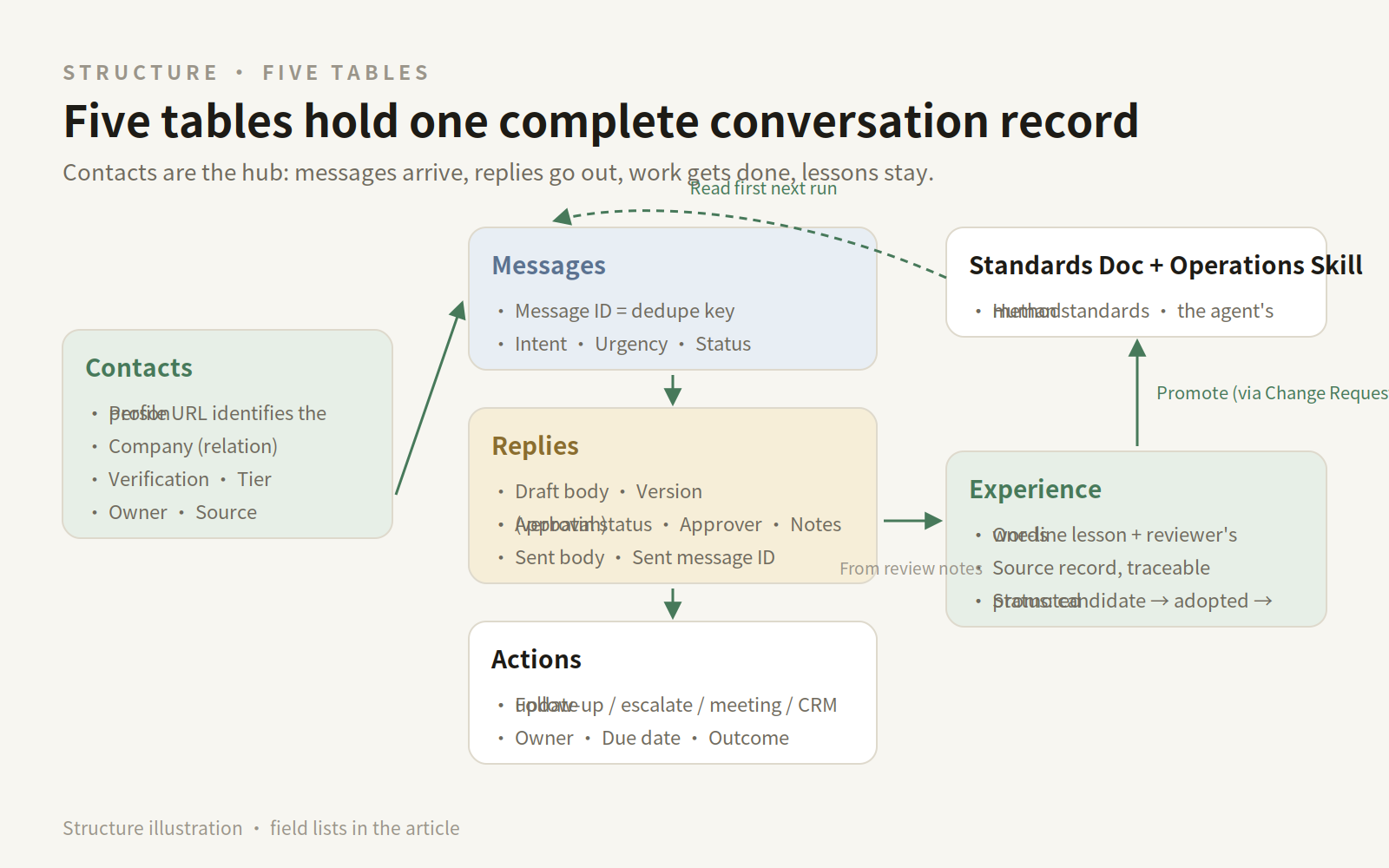
Illustrative diagram, example data — a mockup of the layout below, not a product screenshot.
1. Contacts — who you are talking to
Start from the Busa CRM contacts table:
| Field | Type | Purpose |
|---|---|---|
| Name | Primary field | The person |
| Job title | Text | Their role |
| Company | Relation → Companies | Their account |
| LinkedIn profile | URL | Identify people by profile URL, never by name alone |
| Identity verified | Select: unverified / verified | A human confirmed the right person |
| Intent level | Select: A / B / C | Fit and interest |
| Owner | Person | Who is accountable |
| Source | Select: manual / import / matched from a conversation | How they entered |
2. Messages — one row per message
Every message, in or out, becomes one row. This table is the conversation record.
| Field | Type | Purpose |
|---|---|---|
| Title | Primary field | Short summary, e.g. "Alex: asks about deployment" |
| Thread ID | Text | Shared by one conversation |
| Message ID | Text | Deduplication key — channel ID, or Thread ID + timestamp |
| Contact | Relation → Contacts | Sender or recipient |
| Direction | Select: received / sent | Inbound or outbound |
| Channel | Select: LinkedIn / WhatsApp / email / WeChat / other | LinkedIn here; need not be LinkedIn-only |
| Time | Date/time | When sent or received |
| Body | Long text | Only what is necessary; sensitive threads get a controlled reference |
| Intent | Select: interested / objection / referral / not now / wrong person / declined / question / other | Triage result |
| Urgency | Select: high / medium / low | Needs a human today? |
| Handling status | Select: untriaged / triaged / drafted / handled / no action needed | Place in the loop |
| Linked reply | Relation → Replies | The draft it produced |
3. Replies — one row per proposed reply
A reply is not a message until it is sent. It lives here first; approval happens here.
| Field | Type | Purpose |
|---|---|---|
| Title | Primary field | e.g. "Reply to Alex: deployment question" |
| About message | Relation → Messages | The message it answers |
| Contact | Relation → Contacts | The recipient |
| Draft body | Long text | The agent's proposal |
| Version | Number | Increments on revision |
| Approval status | Select: draft / awaiting approval / approved / approved with edits / rejected / sent | The decision's state |
| Approver | Person | Who decided |
| Approval note | Long text | Experience's raw material — the person's words, as written |
| Sent body | Long text | What went out; its diff against the draft is your standard, visible |
| Sent at | Date/time | When sent |
| Sent message ID | Text | Written back into Messages, closing the loop |
| Outcome | Select: replied / no reply / conversation continued / meeting booked / declined | Filled in when known |
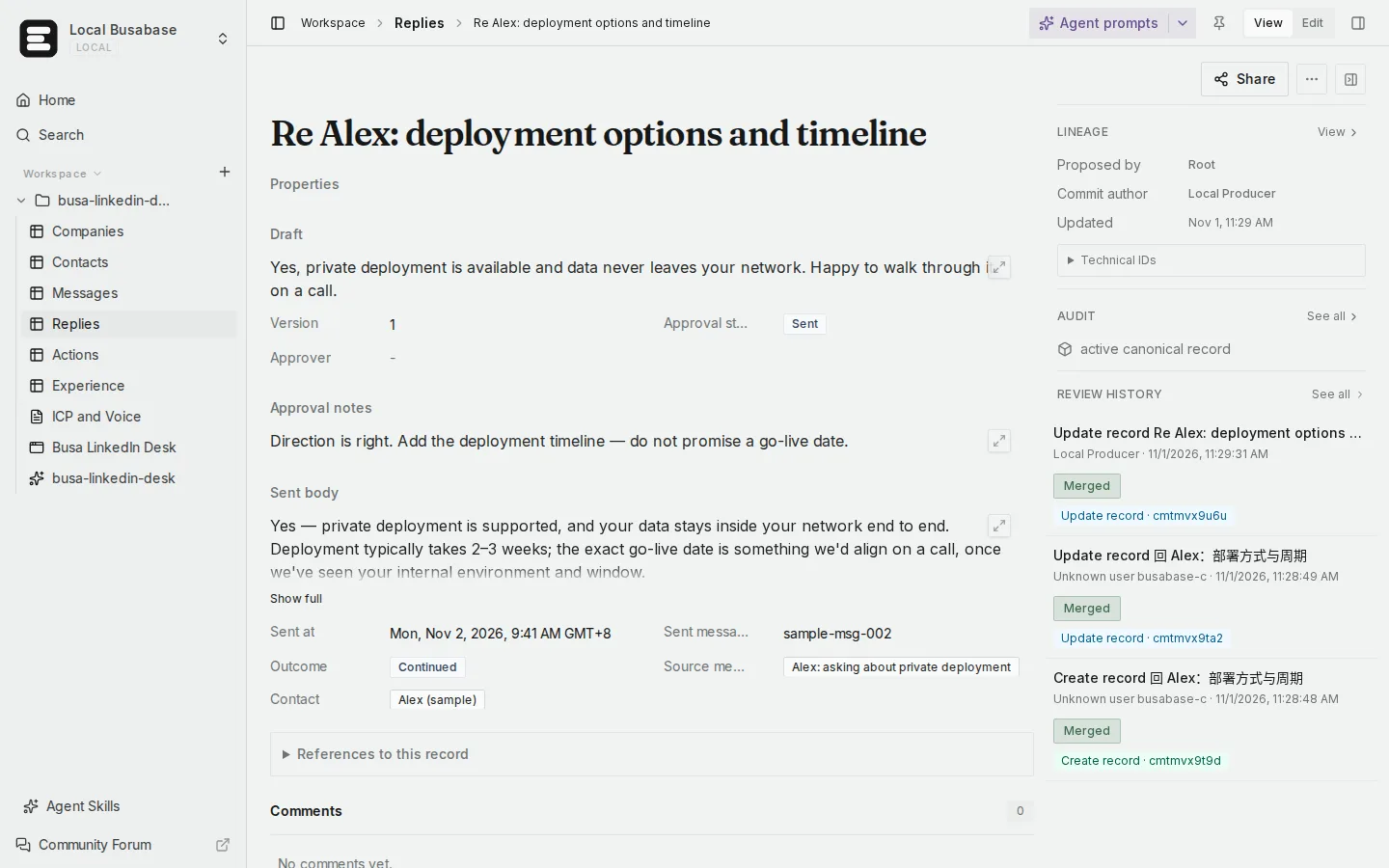
The template's Replies record for the example thread — draft, the approver's note verbatim, the sent text and the sent message ID on one screen (example data).
4. Actions — everything that is not a reply
| Field | Type | Purpose |
|---|---|---|
| Title | Primary field | The task, plainly |
| Type | Select: follow-up / escalate to human / book meeting / send materials / update CRM field / create deal / other | Kind of work |
| Source | Relation → Messages or Replies | Where it came from |
| Owner | Person | Who is responsible |
| Due date | Date | Deadline |
| Status | Select: to do / in progress / done / cancelled | Progress |
| Completion result | Long text | What happened |
| Evidence link | URL | Proof |
One rule: a CRM field update is proposed as a Change Request, never written directly. The agent shows the field diff; a person merges it.
5. Experience — one row per lesson
| Field | Type | Purpose |
|---|---|---|
| Title | Primary field | One sentence, e.g. "On price questions, give a range anchor first, then offer a call" |
| Type | Select: wording that works / objection handling / triage rule / cadence lesson / boundary lesson | Kind of lesson |
| Source record | Relation → Replies or Actions | Traceable to its message and approval |
| Approver's words | Long text | The excerpt it came from |
| Applies to | Text | Audience, industry, situation |
| Counter-examples and limits | Long text | When it does not apply |
| Status | Select: candidate / adopted / promoted to Skill / retired | Review state |
| Promoted to | Link | Skill or Doc it entered |
| Last verified | Date | Last checked as still true |
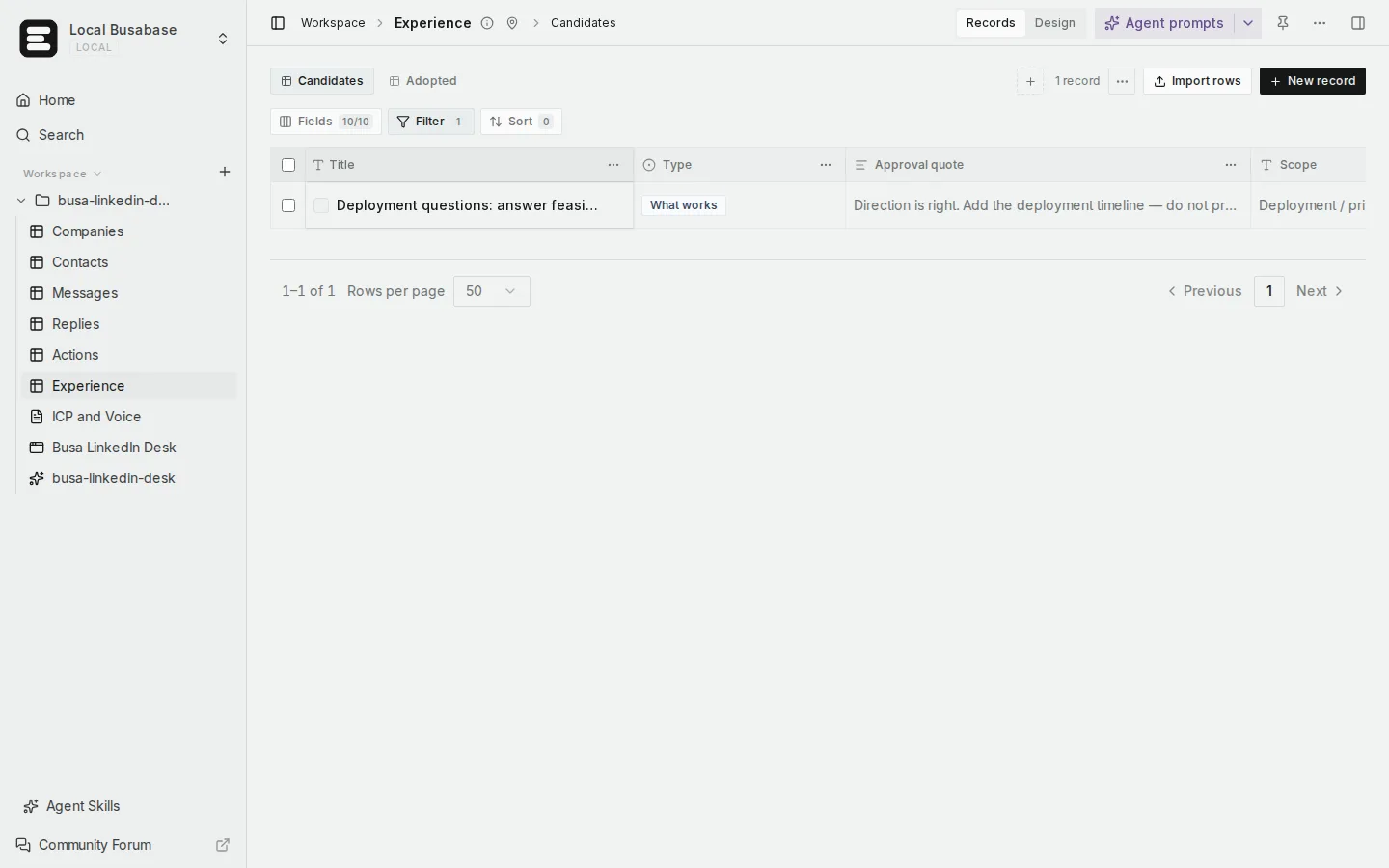
Candidate Experience rows in the template — each lesson traces back to the reply and the approval note it came from (example data).
Getting LinkedIn conversations to your agent: the honest routes
Busabase has no native LinkedIn integration, and this workflow does not need one. The connection sits on the agent's side; Busabase is only the record. The routes are not equal:
| Route | How it works | Honest assessment |
|---|---|---|
| Manual feed | You paste or export conversations to the agent, or it reads the thread open in your signed-in browser | No integration, no account risk. Run your first cycle this way |
| Browser operation | The agent operates your signed-in LinkedIn pages | Fragile; LinkedIn's user agreement restricts automated access. Small volumes, person watching |
| Third-party messaging API / MCP (Unipile-class services) | The agent lists chats, reads and sends messages and manages invitations through a unified API or MCP server; the same class of tool often covers WhatsApp, Instagram and email | The route the ecosystem actually uses. Paid, session-based, with platform-terms and account risk — low volumes, approval before sending |
| LinkedIn official API | The developer programme does not open the personal message inbox for this use case | Not a route here; do not plan around it |
Whichever route you choose: the connector brings conversations in and sends approved messages out. What counts as true — who was contacted, what stage things are at, what happens next — is what is written in Busabase.
The method: Chat · Review · Act · Log · Learn
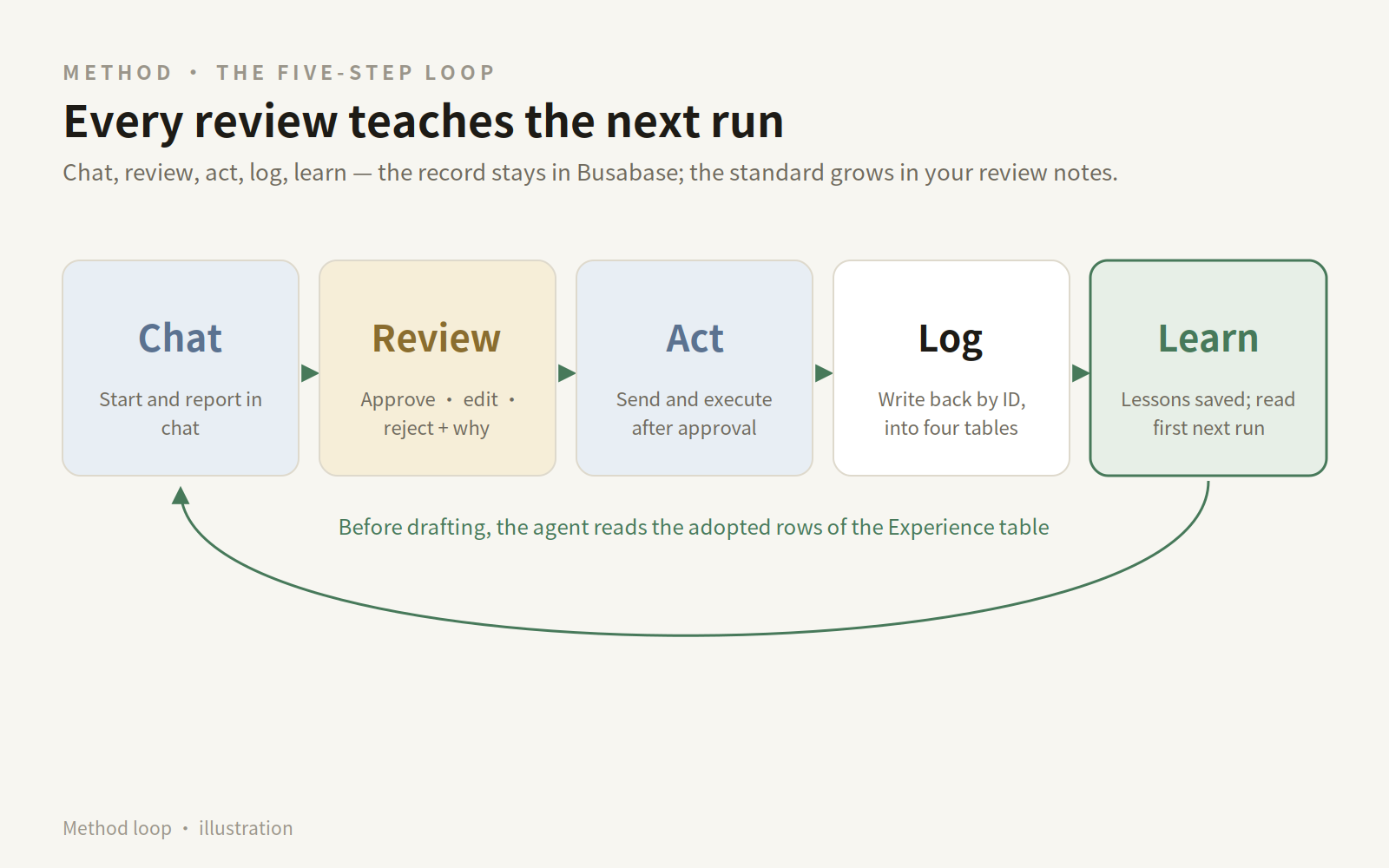
Illustrative diagram, example data — a mockup of the loop below, not a product screenshot.
Chat. Everything starts and ends in your agent's chat: new conversations, proposals, results. You rarely open the tables to run the day — the tables are what make the chat trustworthy.
Review. Each draft gets one of three responses, and all three teach the agent:
- Approve — a positive example: this wording, for this kind of person, is right.
- Approve with edits — the most valuable label you will give. The diff between draft and your version is your standard, written down.
- Reject, with a reason — a negative example and a boundary: never say this, never promise that.
Act. Only approved text is sent. Price, commitments and dates are never the agent's to give — they become an Action, "escalate to human", instead of a reply.
Log. Every message, sent reply and completed action is written back, deduplicated by Message ID. A draft is not a sent message; the record says "sent" only when a sent message ID comes back.
Learn. Each approval note generates a candidate Experience row. At the weekly review you mark what held up as adopted; the agent reads adopted experience before drafting. Lessons that survive repeated use are promoted into the Skill by Change Request — with a diff, a name and an approver.
One message, end to end (example)
A fictional example, to show the records. The person, company and wording are invented.
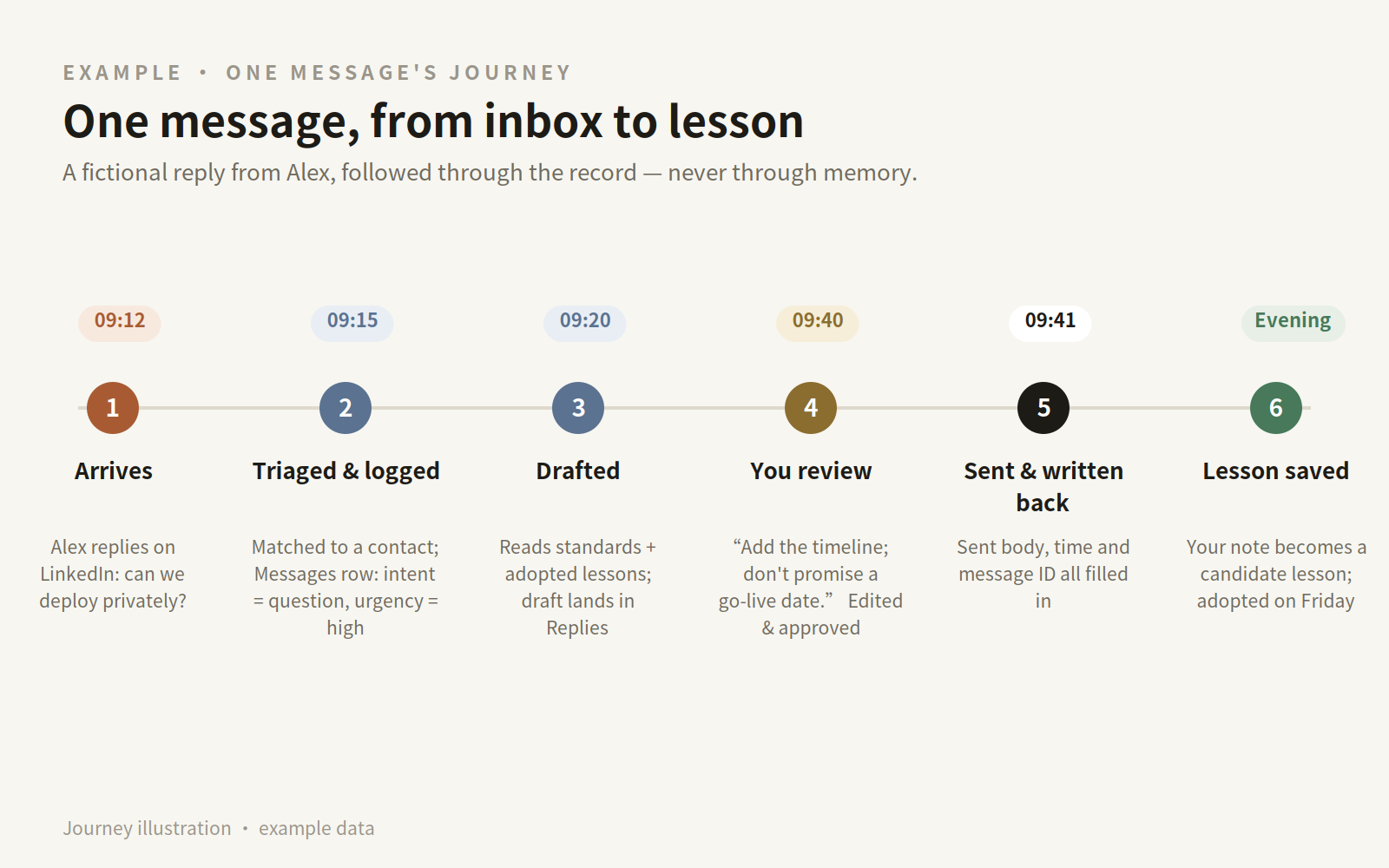
Illustrative diagram, example data — a mockup of the journey below, not a product screenshot.
Monday 09:12 — Alex, an operations lead at a logistics company, replies on LinkedIn: "Can it be deployed privately? Our data can't leave the internal network."
- 09:15, triage. The scheduled run logs it in Messages (Intent = question, Urgency = high, deduplicated by message ID) and matches Alex in Contacts by profile URL.
- Draft. The agent reads the ICP Doc and adopted Experience, creates a Replies row at "awaiting approval", and brings the proposal into chat.
- 09:40, your review. You answer: "Direction is right. Add one line on deployment timeline — and do not promise a go-live date." Approve with edits — your sentence is saved verbatim in the Approval note.
- Act and log. The agent sends the edited text, writes Sent body, Sent at and Sent message ID back to Replies, adds the sent message to Messages, and creates an Action: "Send deployment materials", due Wednesday.
- That evening, a candidate Experience row appears: "For deployment questions, answer feasibility plus timeline; never commit to a date." Friday's review marks it adopted. Two weeks later, the same question arrives from someone else — and the first draft already contains both points.
The prompt pack
Keep the approval boundary in the wording. A chat instruction is guidance; actual sending permission still belongs to your setup.
P0 — Build the desk
Create a folder "LinkedIn Sales Desk". Reuse Companies and Deals from the Busa CRM template. Create Contacts, Messages, Replies, Actions and Experience with the fields from my design, plus a Doc "ICP and voice" and a Skill "LinkedIn outreach operations". Show me the structure first; add no sample customers.
P1 — Daily triage (run the first cycles manually)
Read today's new LinkedIn conversations from [the export I gave you / the connected messaging channel]. Match senders to Contacts by profile URL; unmatched senders become candidate contacts marked "unverified". Log every message in Messages, deduplicated by Message ID, and classify by intent. Draft replies for "interested" and "question" only, save them in Replies as "awaiting approval", and show me the drafts here. Do not send anything. Finish with today's report: new conversations, drafts waiting on me, threads stalled over seven days.
P2 — Execute after approval
Send the replies in the versions I approved. Write the sent body, time and message ID back to each Replies row, and add the sent messages to Messages. Create the follow-up Actions we agreed, with due dates. If a send fails, stop and report it — do not rephrase and retry on your own.
P3 — Weekly review
Summarise this week's Replies and Actions. List candidate Experience rows with their evidence — message, my approval note, outcome. For those you recommend adopting, draft the exact change to the "LinkedIn outreach operations" Skill as a diff. Promote nothing until I confirm.
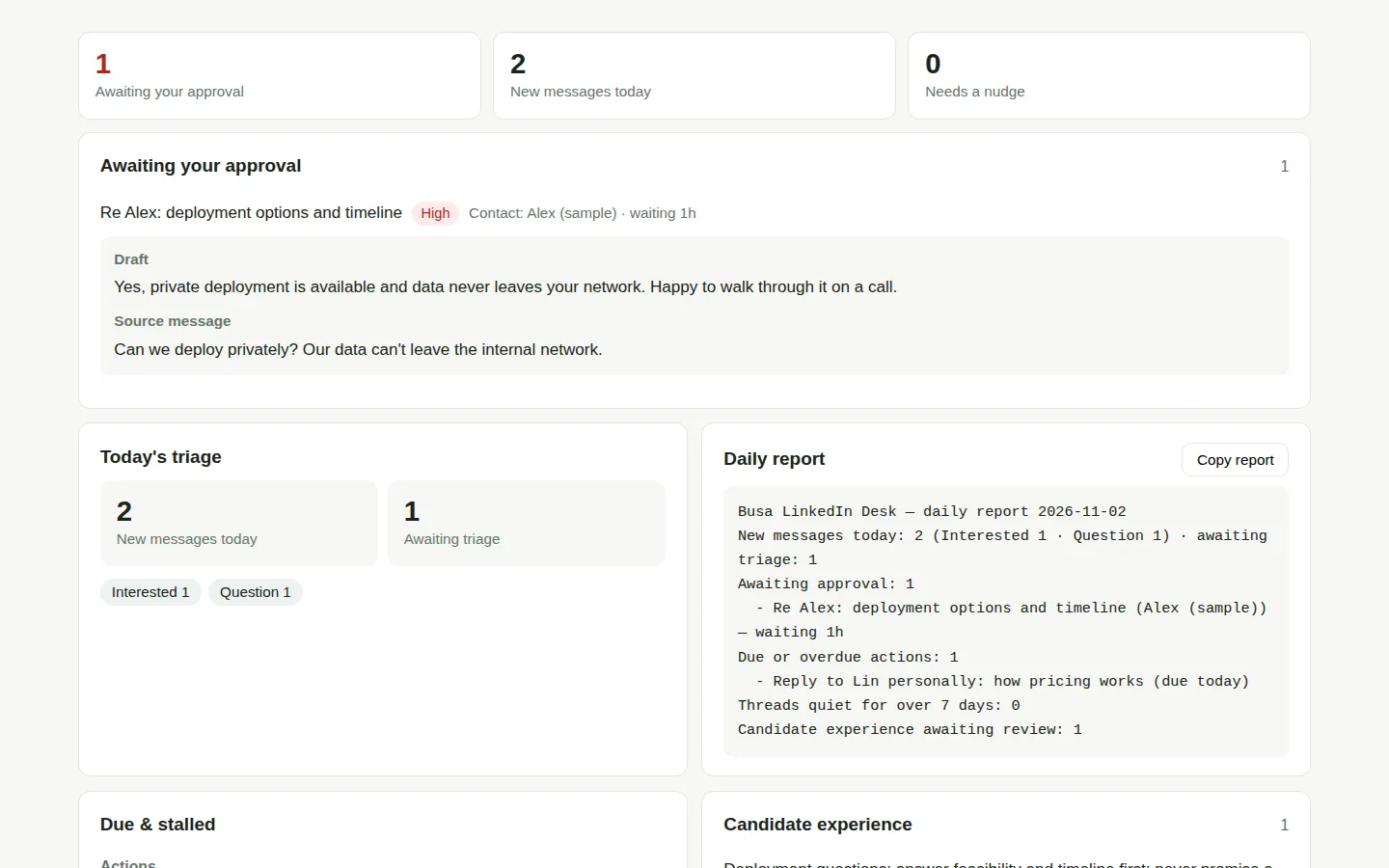
The approval desk in the Busa LinkedIn Desk app: every draft waiting on your decision, in one queue (example data).
The rhythm: daily decisions, weekly learning
Daily. A scheduled run executes P1 and brings one report into chat: new conversations, drafts awaiting you, sends completed, threads going stale. Your part is a few minutes of Review — approve, edit, reject — and the day's outreach moves, with a record behind it.
Weekly. A Doc holds the week: replies and outcomes, pipeline movement from Actions and Deals, and the Experience review from P3, including cadence adjustments. Nothing enters the Skill outside this review.
A compact scenario tour
- New outreach. The agent drafts a first touch from the contact's public information → Replies, awaiting approval → the approved send is logged in Messages → a follow-up Action is created. Nobody is contacted from an unreviewed list: Contacts rows are verified first.
- No-reply follow-up. A due Action prompts a draft that continues the earlier thread instead of restarting it → round limits and intervals come from the Skill → when rounds run out, the Action closes and the thread is marked.
- Objection. The reply is logged with Intent = objection → the agent drafts from adopted Experience for that objection → price or commitment content is removed and escalated as an Action for a human.
- Existing-customer check-in. A scheduled Action prompts a draft based on recorded history — last conversation, open actions, what was promised → the reply lands in the same Messages table, so account history stays one record, not two tools.
Boundaries, stated plainly
- Platform terms and account risk are real. Automated LinkedIn access sits awkwardly with its user agreement, and accounts do get restricted. Keep volumes human, prefer the manual route while learning, never treat a connector as permission.
- Rate limits are a design constraint. Invitations and messages are capped by the platform; the desk's cadence rules keep the agent inside them.
- Privacy minimisation. Store the excerpts and controlled references a reviewer needs — not whole sensitive conversations copied everywhere. Examples should always use synthetic data.
- Draft ≠ sent, proposal ≠ merged. Status fields and the sent message ID draw that line. No ID written back, it did not happen.
FAQ
Can I do this without a messaging tool like Unipile? Yes. Start manually and let the agent do triage, drafting and record-keeping. Tables, approval loop and experience review all work without a connector; add a messaging API only if fetching becomes the bottleneck.
Can the agent send messages by itself? Through a messaging channel, technically yes — which is why this guide defaults to approval first. Routine drafts can earn broader standing instructions over time, but price, commitments and dates stay with a person, and a chat "yes" only counts when its scope is clear.
How is this different from a CRM? It starts from one: Busa CRM already holds companies, contacts and deals. The desk adds the agent-facing layer — every conversation as a record, every send preceded by an inspectable approval, and your approval comments preserved as experience.
Won't the same conversation be logged twice? That is what Message ID prevents. Every write to Messages checks the deduplication key first and updates the existing row instead of creating another.
Start with the record, then add the agent
Copy Busa CRM and Busa Sales Outreach from /templates, add the five tables and the prompt pack, and run one manual cycle: one list, a few drafts, your approvals, the writeback, the first candidate lessons. When that loop feels ordinary, connect a messaging channel and let the daily run fetch for you.
That package has since shipped as the Busa LinkedIn Desk template — these tables, the operations Skill and the approval desk in one installable package, with a short demo video on its template page. Build the desk by hand first and your version will be better anyway: it will hold your ICP, your red lines, and experience written in your own approval notes.