Reconcile orders, invoices and payments with Busa Audit
Keep the document chain visible and let people decide how to follow up on exceptions.

An order says the sale is complete, an invoice shows a different amount, and a receipt has no matching invoice. An agent’s “reconciliation complete” message does not explain whether the problem is a missing document, an incorrect reference or a duplicate import.
Busa Audit turns exported orders, invoices and payments into an exception review desk. Deterministic rules identify records worth checking. A person examines the evidence, edits a follow-up draft and decides what to do. It audits imported business documents; it does not automatically connect every bank account or ERP.
Step 1: Install the template and prepare the exports
Sign in through the template page, choose the intended workspace and inspect the installed resources. Prepare authorized local CSV or JSON exports. Any subset of the three document types can be imported, but missing inputs limit what can be matched. The importer reads local files rather than fetching documents from remote business systems.
Confirm company profile, base currency, any required exchange rates and column mappings. Orders use order_no, invoices invoice_no, and payments payment_ref as natural keys. If the source lacks stable identifiers, settle that mapping before treating changing row numbers as document identity.
Agree on days allowed before invoicing, amount tolerance, aging buckets and duplicate-payment window. Wide tolerances can hide meaningful differences; narrow ones create noise. Currency normalization must be explicit before comparing amounts.
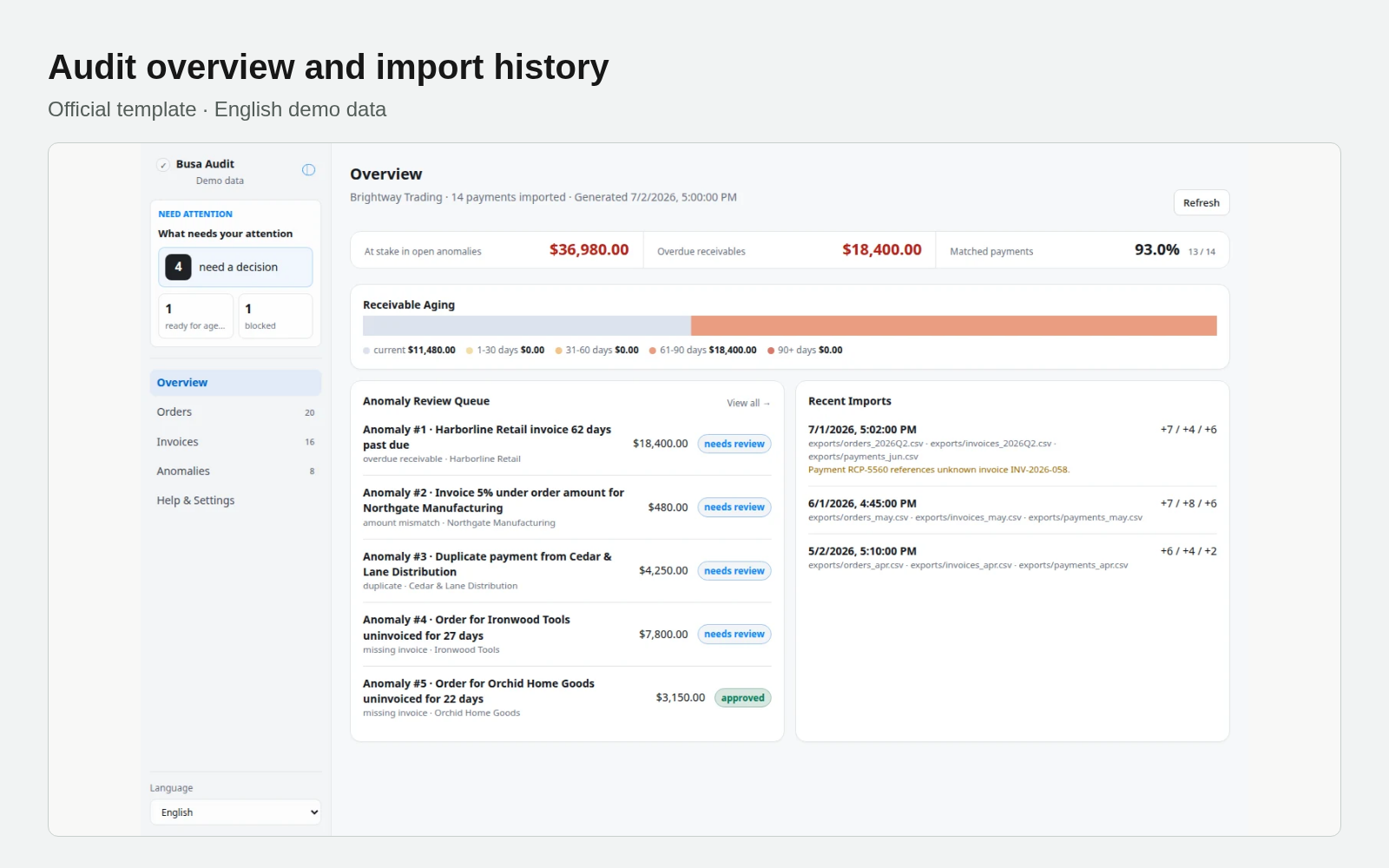
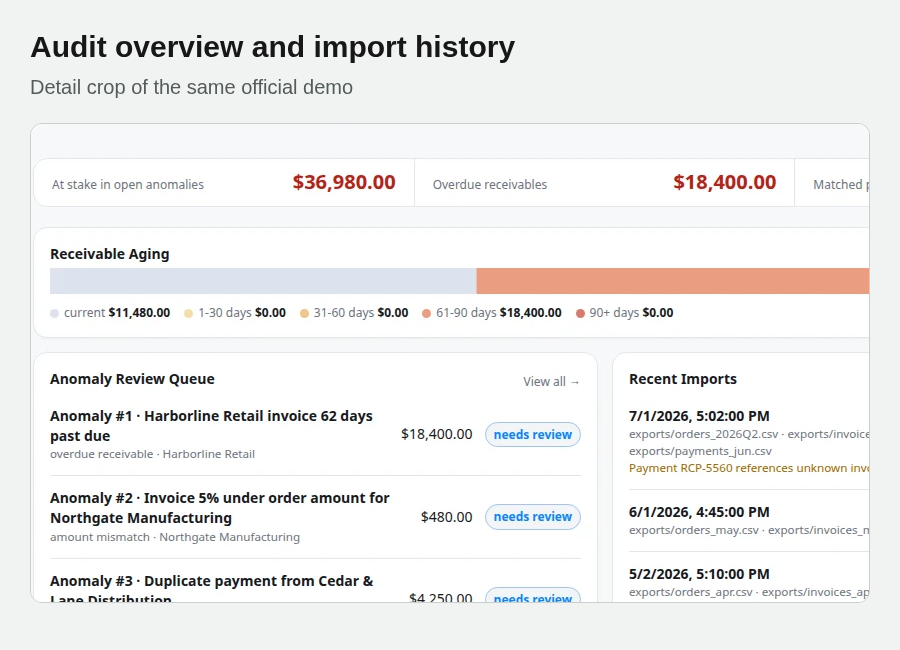
Official template · English demo data
Understand how the six Bases connect evidence and decisions
The Orders, Invoices and Payments Bases hold normalized documents. Anomalies stores rule findings, evidence, drafts, decisions and execution markers. Import log retains run counts and warnings; Settings holds mappings and tolerances. This gives reviewers a route from an exception back to its document chain.
The interface derives status, aging and metrics from stored rows. When more pages remain, interpret summaries within the loaded scope rather than as an audit of the entire ledger. A useful agent instruction is: “Check these exports and propose mappings first. Preview the import. After authorization, import and run the rules; return each exception’s documents, difference and unanswered question. Do not invent values or send collection messages.”
Step 2: Preview the import, then run checks
import_tables.mjs is a dry run without --apply. Applied imports upsert natural keys and append import history. Examine skipped rows and references to unknown invoices instead of equating a populated screen with a complete import.
run_checks.mjs --apply covers missing invoices after the allowed period, invoice/order amount differences, overdue receivables, duplicate payments or invoice numbers, unmatched payments and irregular entries such as credit notes without an original. These are investigation signals, not findings of fraud or automatic accounting adjustments.
A duplicate payment and an unmatched payment require different questions. One suggests repeated entry; the other lacks a recognized invoice link. The next step may be checking a bank reference or correcting an identifier, not sending another reminder.
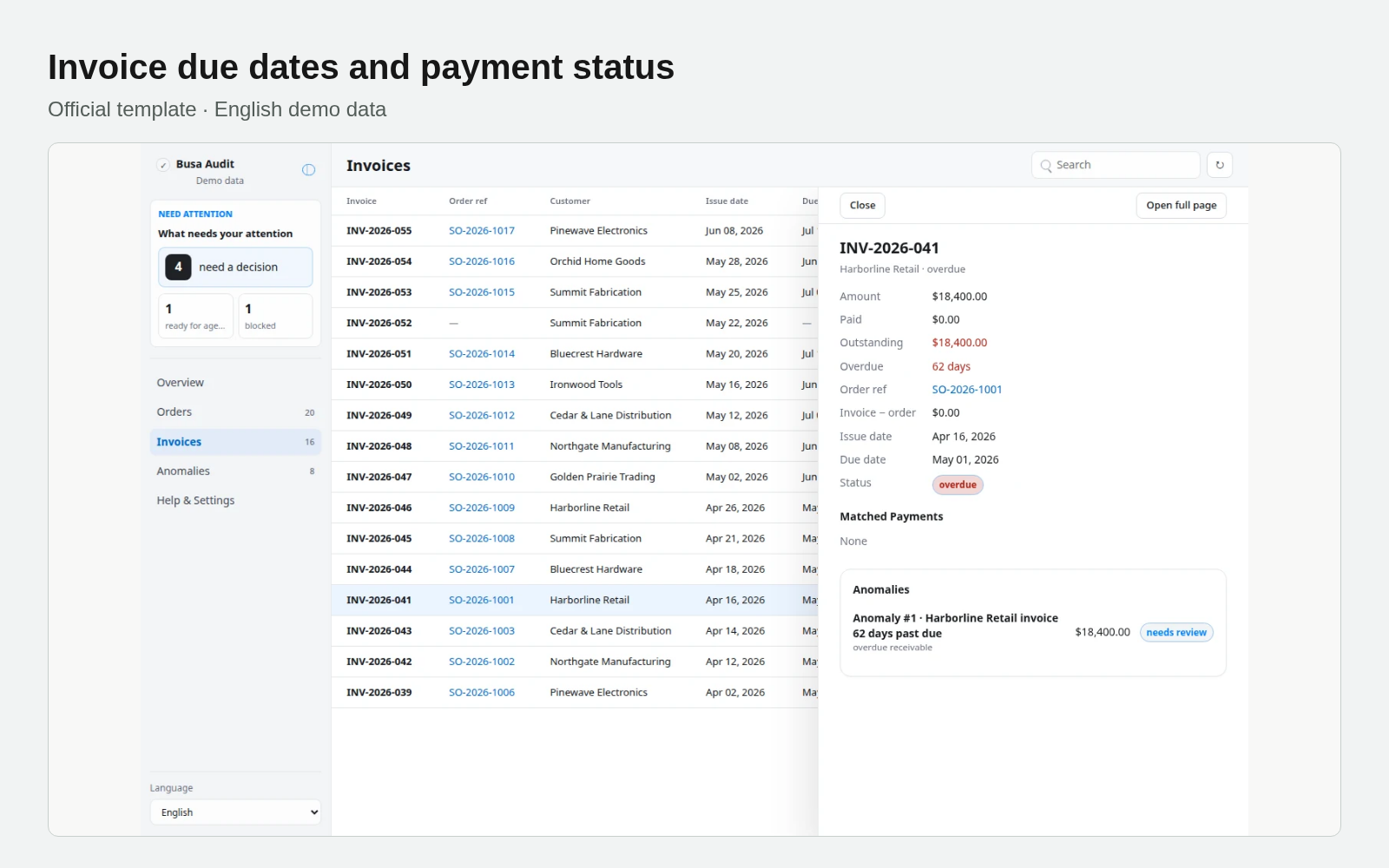
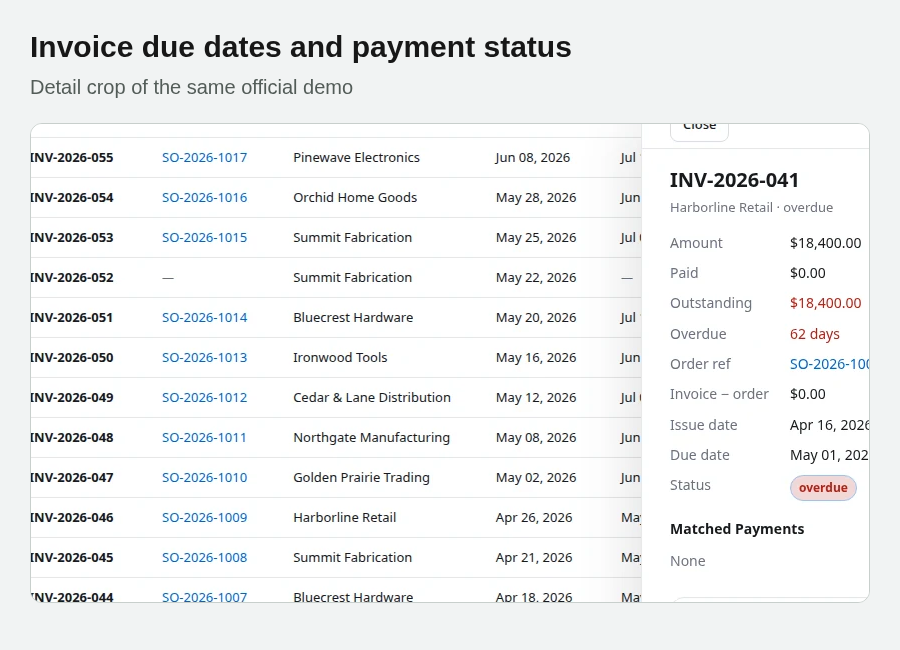
Official template · English demo data
Step 3: Review evidence and preserve decisions
Anomalies use stable anom-<rule>-<key> identifiers. Reruns upsert rather than duplicate them, preserving existing status, references, decisions and execution details. Conditions that clear are automatically resolved to done, so inspect context rather than assuming every done row represents completed external work.
Agents can improve explanations and follow-up drafts while retaining identity and evidence. If the source data is wrong, use the authorized correction process and reimport it. Do not alter evidence merely to make the books appear balanced.
Step 4: Approve the draft, then hand off execution
The review desk exposes evidence, editable drafts and notes, with approve, request changes, block and close decisions. Writes follow the person’s permissions: write access can save immediately; insufficient write access may produce a ChangeRequest. An anomaly’s approved state is a business decision, distinct from a CR review state.
execute_decisions.mjs defaults to a dry run. On an explicit execution request, --apply records ready_for_agent with the planned action and document target. It does not email customers, modify ERP records or move money. An authorized external workflow performs that action and writes the real result back. The marker script also does not change workflow status to done.
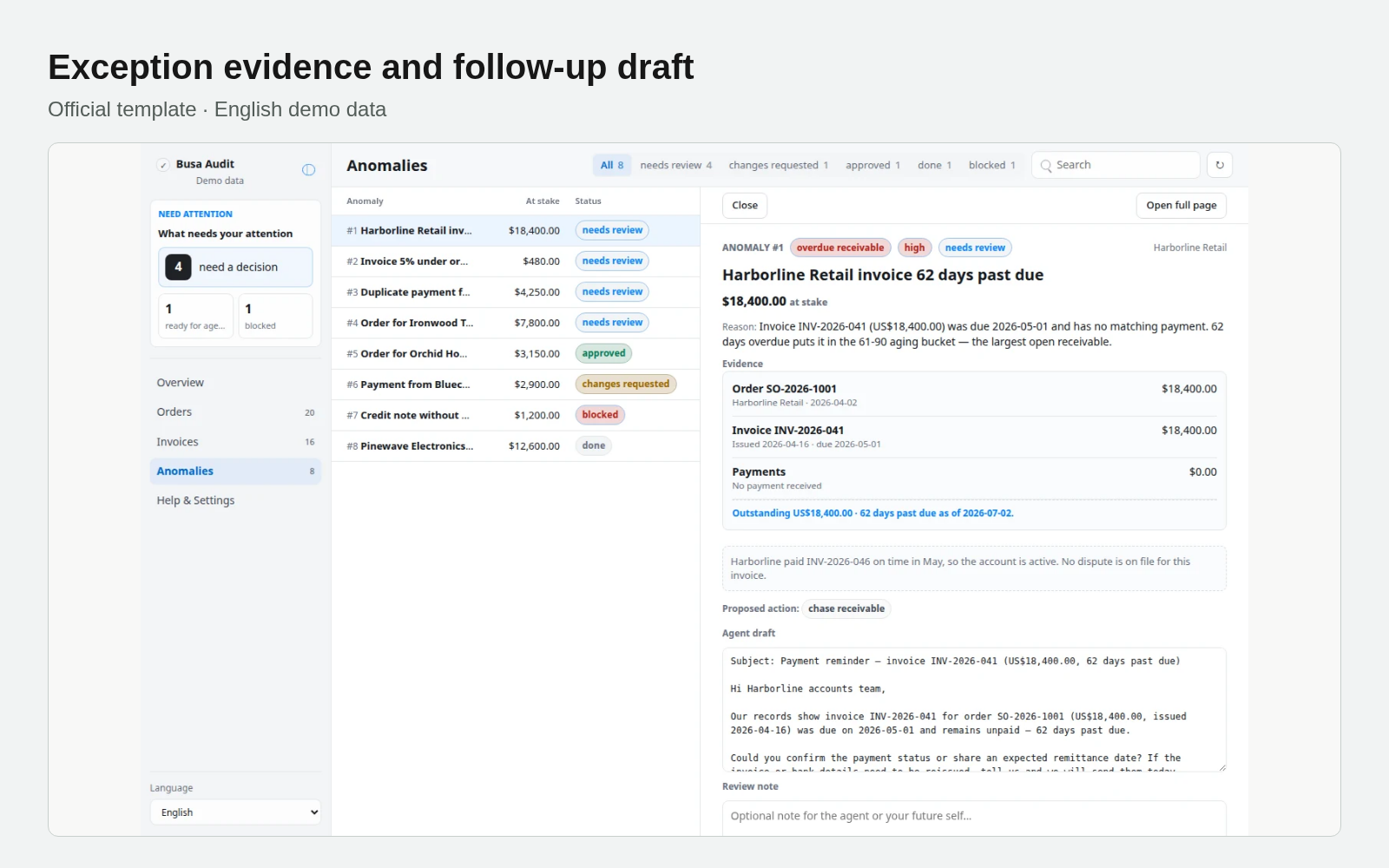
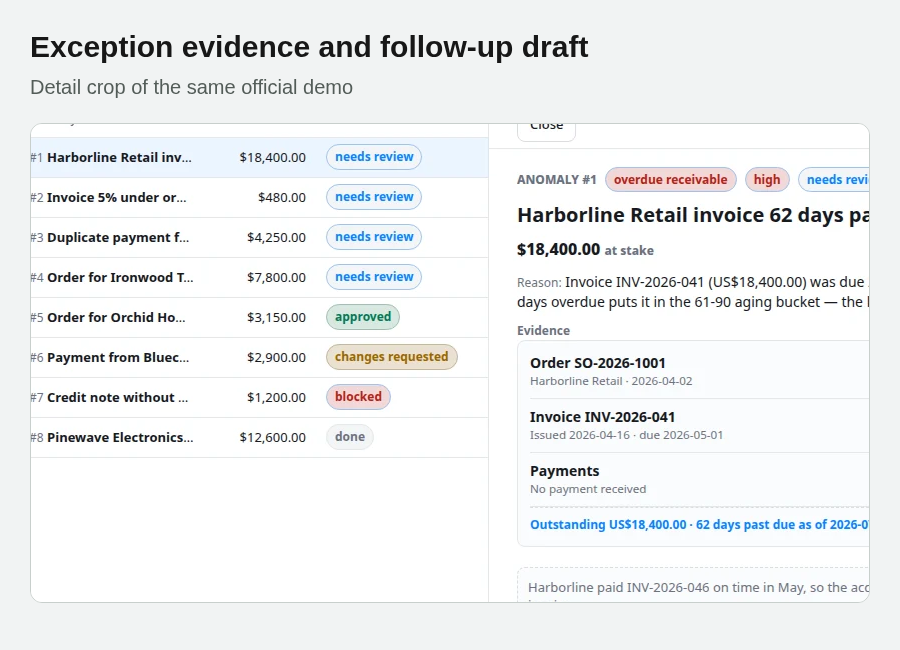
Official template · English demo data
Step 5: Verify one complete reconciliation cycle
Compare file rows with import counts and warnings. Trace an amount difference through the original order, invoice and payment. Rerun checks to verify stable identity and retained decisions. Inspect the draft and the authorization for any external follow-up, then record the actual result before closing work.
The official screenshots show English demo data, not customer reconciliation results. The template source documents the current commands and rules. Start with a bounded set of exports, make the evidence review dependable and expand only after that handoff works.
Start with a bounded set of business documents
Open the Busa Audit template page, sign in and install it in the intended workspace. Prepare authorized order, invoice and payment exports, agree on mappings and tolerances, then ask the agent to preview the import and run checks. Review the evidence and follow-up draft before authorizing external execution.